On this page
- First, read the rejection properly
- Fix 1: Make your business name match exactly
- Fix 2: Match your address word for word
- Fix 3: Use documents in the business's name
- Fix 4: Swap old proof for something recent
- Fix 5: Verify your domain (and show your name on it)
- Fix 6: Make sure you can get the confirmation code
- Fix 7: Upload clean, full-page scans
- Rejection reasons and the matching fix
- Your safe resubmission plan
- Prevention checklist: get it right the first time
- Special cases we see a lot
- You rebranded or changed your company name
- You use a virtual office or registered agent
- You run several businesses
- Your documents aren't in English
- What happens while Meta reviews your request
- FAQ
- How many times can I resubmit verification?
- How long until I hear back after resubmitting?
- Can I verify with a virtual office address?
- Want it done for you?
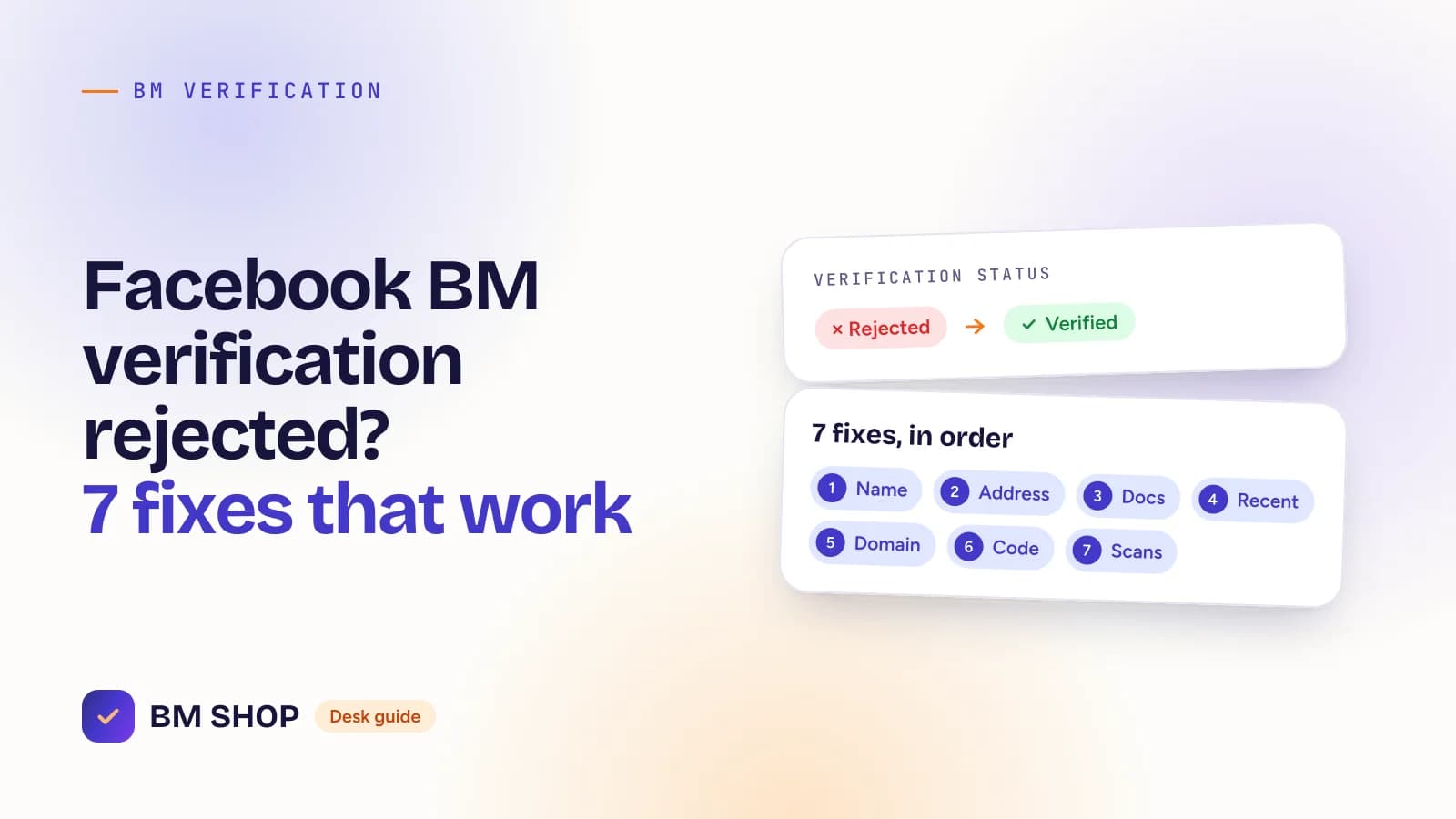
If your Facebook Business Manager verification was rejected, the cause is almost always a mismatch: your Business Info says one thing and your documents say another. Fix the mismatch, make sure your documents are recent, clear and issued to the business, verify your domain, then resubmit once. Below are the seven fixes we use most often, in the exact order we check them for clients, plus how to read Meta's rejection reason and a resubmission plan that won't make things worse.
TL;DR
- Most rejections are fixable in under an hour once you know the cause.
- Copy your legal name and address from your documents into Business Info, word for word.
- Use documents issued to the business, not to you personally, and make sure they're recent.
- Resubmit once, after fixing the cause. Spamming resubmissions slows everything down.
First, read the rejection properly
Open Business Settings → Security Center and read the status message. Meta's reasons are short, but they usually point at one of three areas: the business details (name, address, phone, website), the documents, or the confirmation step. Note which one before you change anything. Changing everything at once makes it impossible to know what worked, and can create new mismatches.
Fix 1: Make your business name match exactly
This is the big one. "Bright Labs" in Business Info and "Bright Labs Ltd" on your certificate counts as a mismatch. So does a brand name in place of the legal name.
- Copy the legal name from your registration document, suffix and all.
- Use your brand name on your Page and ads, not in the legal name field.
Fix 2: Match your address word for word
Missing unit numbers, abbreviations ("St" vs "Street"), a missing district or an office you've moved out of all trip reviewers. Use the address exactly as printed on your proof-of-address document.
Fix 3: Use documents in the business's name
A utility bill addressed to the owner proves nothing about the company. Use bills, bank statements or tax letters issued to the business itself. Not sure which documents count? Meta lists accepted documents for your country inside the verification flow and in the Meta Business Help Center.
Fix 4: Swap old proof for something recent
Old bills and bank statements are a common silent reason for rejection. Download the newest statement or bill you have before you resubmit.
Fix 5: Verify your domain (and show your name on it)
Go to Brand Safety → Domains, add your domain and verify it with a DNS TXT record, a meta tag or an HTML file. DNS is the most reliable option. Then check your website actually shows the business name you're verifying. A website that only shows a brand name, or a link-in-bio page, weakens the request.
Fix 6: Make sure you can get the confirmation code
Meta confirms your contact details by sending a code to the business phone or email, or through your verified domain. Requests often stall here because the code goes to a number nobody answers. Choose a route you can access right now.
Fix 7: Upload clean, full-page scans
Blurry photos, cropped corners, screenshots and glare all get rejected, even when the details are right. Scan the full page flat, in good light, ideally as the original PDF. And never edit a document. Ever. It can get the account restricted, not just the request rejected.
Rejection reasons and the matching fix
| What Meta flags | Usually means | Fix |
|---|---|---|
| Business details couldn't be confirmed | Name or address mismatch | Fixes 1 and 2 |
| Document not accepted | Wrong type, personal name, too old or unclear | Fixes 3, 4 and 7 |
| Couldn't confirm contact | Code not received or wrong contact route | Fix 6 |
| Website issue | Unverified domain or name not shown | Fix 5 |
Your safe resubmission plan
- Identify the one area Meta flagged.
- Fix only what's needed in that area, so everything else stays consistent.
- Double-check the whole file against our checklist above.
- Resubmit once, and then wait. Answer any follow-up the same day.
Real talk from the desk: the clients who get stuck for weeks are usually the ones who resubmitted five times in two days. One clean, corrected submission beats five rushed ones.
Prevention checklist: get it right the first time
If you haven't submitted yet (or you're about to try again), run through this list. It takes ten minutes and covers almost every reason we see for rejections.
- Legal name in Business Info copied exactly from your registration document.
- Address copied exactly from a recent document issued to the business.
- Website on your own domain that shows the business name, and the domain verified.
- A business phone or email you can get a code on today.
- Documents scanned flat, full page, readable, and not edited in any way.
- No active restrictions on the Business Manager.
Special cases we see a lot
You rebranded or changed your company name
Meta checks the legal name, not your brand. If your company changed its legal name, update your registration first and use documents that show the new name. If only the brand changed, keep the legal name in Business Info and use the new brand on your Page and ads.
You use a virtual office or registered agent
This can work, but only when your documents are issued to the business at that address. If your bank statements go to one address and your registration shows another, pick one, make sure documents support it, and enter that one.
You run several businesses
Verify each business in its own Business Manager with its own documents. Mixing documents from two companies in one request is a quick way to get rejected.
Your documents aren't in English
Meta supports many languages, but not all. If yours isn't supported, a certified translation may be needed. Check what the verification flow asks for in your country.
What happens while Meta reviews your request
After you submit, Security Center shows your request as under review. Reviews usually take somewhere between a couple of days and two weeks. During that time Meta may ask for another document; if it does, answer quickly with exactly what's requested. Don't change your Business Info mid-review, and don't open a new request. Both can reset the clock.
FAQ
How many times can I resubmit verification?
Meta doesn't publish a fixed number, but repeated attempts without changes can slow reviews and look risky. Fix first, then resubmit once.
How long until I hear back after resubmitting?
Usually somewhere between a couple of days and two weeks. Don't open a second request while one is pending.
Can I verify with a virtual office address?
Only if your documents are issued to the business at that address. Meta checks that your documents and Business Info agree.
Want it done for you?
Our BM verification service starts with a free check of your documents and Business Info, then prepares and submits everything inside your own BM, with one free resubmission if Meta still says no. Launching this week and can't wait for review? Grab a verified BM from our stock, handed over the same day. Still deciding? Read verified vs unverified BM.
Notes from the sourcing desk that checks and hands over every asset in the catalog, and sets up BM verifications, WhatsApp API numbers and ad accounts for clients every week.