On this page
- Part 1: Display names that pass
- Display name: pass or fail
- Part 2: Pick the right template category
- Part 3: Write templates reviewers like
- Part 4: Keep your messaging limits rising
- Common rejections, and how to fix them
- Opt-ins that actually count
- Example templates by category
- Utility: order update
- Authentication: login code
- Marketing: back in stock
- What your quality rating colours mean
- FAQ
- How long do template reviews take?
- Can I edit an approved template?
- Where can I check the official rules?
- Skip the trial and error
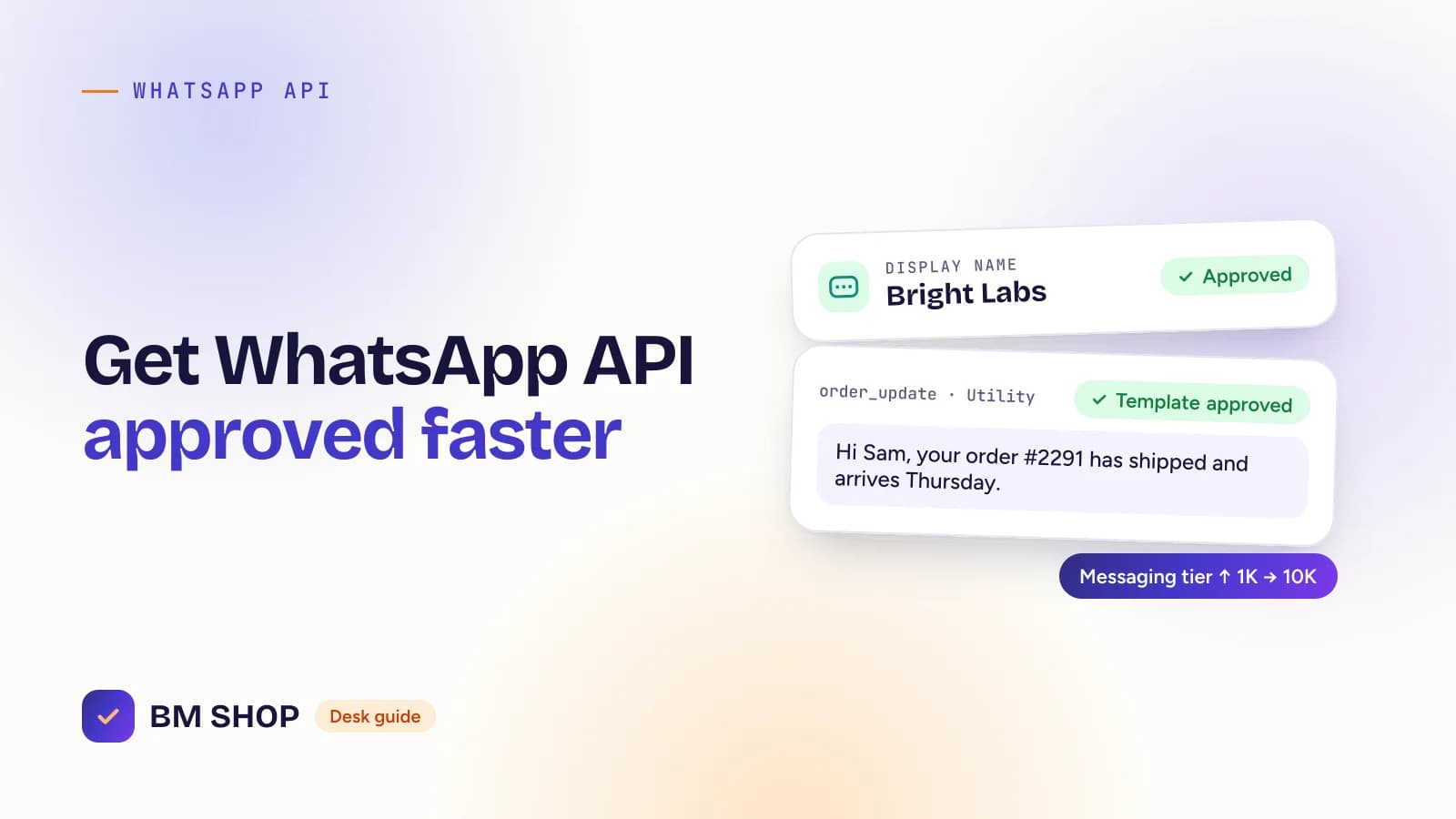
To get WhatsApp Business API approvals faster, use a display name that clearly matches your verified business, file each message template in the right category (utility, authentication or marketing), start templates with real words rather than a variable, give clear sample values, and only message customers who opted in. Setting up the number itself is quick; approvals are where most launches lose days. Here's how we get display names and templates through on the first try, and how to keep your messaging limits climbing afterwards.
TL;DR
- Verify your Business Manager first; it makes display name approval much smoother.
- If a message sells anything, it's a marketing template, even if it also gives an update.
- Templates that start with a variable or use vague wording get rejected.
- Opt-ins and a high quality rating are what move you up the messaging tiers.
Part 1: Display names that pass
Your display name is what customers see at the top of the chat. Meta reviews it against its naming guidelines and your business details. Names that pass have a few things in common:
- They clearly relate to your business. The name matches your verified business or a brand that's obviously yours, and it appears on your website.
- They're not just generic words. "Support" or "Best Deals" on its own won't pass. "Bright Labs Support" can.
- They're cleanly formatted. No emojis, no random capitals, no extra punctuation, no URLs.
- They don't impersonate anyone. No other brands, no public figures.
Display name: pass or fail
| Example | Likely result | Why |
|---|---|---|
| Bright Labs | Pass | Matches the business |
| Bright Labs Support | Pass | Business name plus a clear function |
| Best Deals!! | Fail | Generic, extra punctuation |
| BRIGHT labs 🚀 | Fail | Odd capitals, emoji |
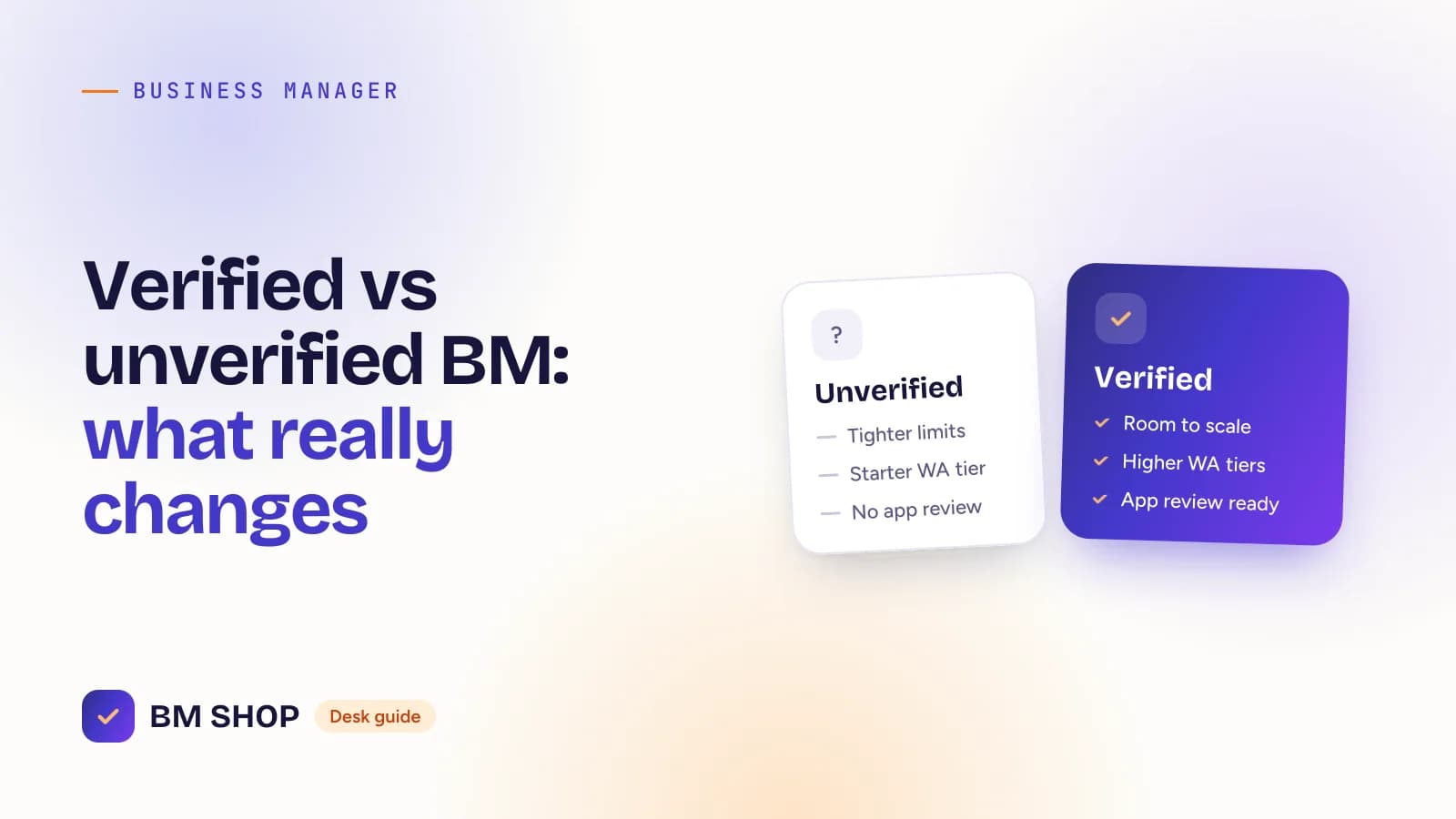
The single biggest boost: a verified Business Manager. Meta can match the name to a confirmed business instead of guessing.
Part 2: Pick the right template category
Every template is filed as one of three categories, and getting it wrong is the top reason for rejections and surprise reclassifications (which can also change what you're charged):
- Utility: updates about something the customer already did or asked for. Order confirmations, shipping updates, appointment reminders, account changes.
- Authentication: one-time passcodes and login codes, and nothing else.
- Marketing: anything promotional. Offers, launches, back-in-stock nudges, re-engagement, newsletters.
The rule we give every client: if the message sells, it's marketing. "Your order shipped! Use code SAVE10 on your next one" is a marketing template, even though half of it is an update.
Part 3: Write templates reviewers like
- Start with real words. "Hi {{1}}, your order {{2}} has shipped" beats a template that opens with "{{1}}".
- Give every variable a clear sample. When you submit, sample values show the reviewer what the real message looks like.
- Be specific. Vague wording ("You have an important update!") looks like spam.
- Don't stack variables. Several variables in a row with no text between them often get rejected.
- Add an opt-out line to marketing templates.
- Use buttons wisely. Quick replies and URL buttons are great, but the URL should match your business domain.
- Stay inside the rules. Some products can't be promoted on WhatsApp at all. Check the WhatsApp Business Messaging Policy.
Part 4: Keep your messaging limits rising
New numbers start with a cap on how many customers you can start conversations with in a rolling 24 hours. Meta raises you through the tiers over time when three things are true:
- Your business is verified.
- Your quality rating stays high, meaning few blocks and reports.
- You're actually using your current limit with steady, legitimate volume.
Messaging people who never opted in does the opposite: blocks go up, quality drops and your limit can fall. Collect clear opt-ins on your website, at checkout or in click-to-WhatsApp ads.
Common rejections, and how to fix them
| Rejection | Fix |
|---|---|
| Wrong category | Re-file promotional content as marketing |
| Variable at the start or end | Wrap variables in real text |
| Unclear or missing samples | Add realistic sample values for each variable |
| Policy violation | Remove restricted products or claims |
| Display name doesn't match | Match your verified business name and website |
Opt-ins that actually count
WhatsApp expects customers to agree to hear from you before you message them. A good opt-in is clear about the channel (WhatsApp), the business (your name) and the kind of messages they'll get. Strong places to collect it:
- A checkbox at checkout: "Send order updates on WhatsApp".
- A sign-up form on your website with WhatsApp as a choice of channel.
- A click-to-WhatsApp ad, where the customer messages you first.
- Your support chat, when a customer asks to be notified.
Buying lists or importing every phone number in your CRM isn't an opt-in. It's the fastest way to tank your quality rating.
Example templates by category
Utility: order update
"Hi {{1}}, good news: your order {{2}} has shipped and should arrive by {{3}}. Track it anytime with the button below." (with a URL button to your tracking page)
Authentication: login code
"{{1}} is your verification code. For your security, don't share this code." Meta provides set formats for authentication templates, so keep them short and code-focused.
Marketing: back in stock
"Hi {{1}}, the {{2}} you liked is back in stock. Grab yours before it sells out again. Reply STOP to opt out." (with a quick-reply or URL button)
What your quality rating colours mean
| Rating | What it means | What to do |
|---|---|---|
| Green (high) | Customers are happy with your messages | Keep going; you're eligible to move up tiers |
| Yellow (medium) | More blocks or reports than usual | Review recent templates and who you sent them to |
| Red (low) | Customers are blocking or reporting you | Pause marketing sends, tighten opt-ins, improve relevance |
From the desk: the quickest quality drops we see come from one big promotional blast to an old customer list. Smaller, targeted sends to people who recently opted in keep ratings green.
FAQ
How long do template reviews take?
Often minutes, sometimes up to a day. If a template keeps getting stuck, the wording or category usually needs a change.
Can I edit an approved template?
You can edit templates, but edits go back through review. Plan wording carefully the first time.
Where can I check the official rules?
Meta's WhatsApp Cloud API docs cover templates, categories and limits in detail.
Skip the trial and error
Our WhatsApp API setup service drafts your display name and first templates, files them in the right categories, connects your inbox or CRM, and plans your path to higher limits. Still on the WhatsApp Business app? Start with why a verified BM matters, or ask the desk.
Notes from the sourcing desk that checks and hands over every asset in the catalog, and sets up BM verifications, WhatsApp API numbers and ad accounts for clients every week.